
The challenge is reach. Social media and donor communications now reward motion. If your story shows up as a static image, it gets polite engagement and disappears. Add a few seconds of purposeful movement and the same image becomes a fundraising video, a museum marketing asset, or a donor engagement clip that people watch, save, and share.
Your archive is powerful. It just is not moving anyone yet
You do not need a production crew. With an AI photo to video workflow, you can animate a still image into a short, natural video in about 30 to 60 seconds. This guide gives nonprofits, foundations, cultural institutions, historical societies, and heritage organizations a practical process using Frameish, a browser-based AI video generator that converts a single image into a video using credits. Entry starts at 3 videos for $14.99 with a Money-Back Promise.

Where AI photo to video fits in nonprofit marketing
Fundraising campaigns and Giving Tuesday
Create short nonprofit videos from archival photos that lead with a person or moment. Use them in social ads, donation landing pages, and appeal emails. End on a clear call to give.
Donor stewardship and retention
Send donor thank-you videos created from impact images. A 6 to 10 second loop paired with a personal note increases reply and renewal rates.
Grant reports and advocacy
Use short clips to show progress. A subtle pan across a before-and-after pair helps funders see change quickly.
Museum and gallery promotion
Publish museum marketing teasers for exhibitions. Animate artifacts, placards, or gallery scenes to create interest without filming.
Volunteer recruitment
Turn community event photos into short-form social media videos for TikTok, Instagram Reels, YouTube Shorts, and Facebook Reels. Add on-screen text with dates and sign-up links.
On-site displays and kiosks
Run lightweight loops on in-gallery screens or lobby displays that animate key artifacts or historic buildings.

Prepare your images for the best results
Strong inputs help the model generate realistic motion and avoid artifacts.
Scan quality and resolution
For prints or slides, scan at a high resolution. For digital files, aim for at least 1080 px on the short edge. Clean dust and scratches before upload.
Composition and subject clarity
Pick images with a clear focal point. Faces, hands, tools, artifacts, building facades, historic scenes with a central subject.
Depth and separation
Choose frames with foreground, midground, and background so a slow move creates depth.
Straight lines and true color
Correct horizons and vertical lines. Keep color true to the source. If the photo is black and white, preserve that look.
Metadata and consent
Confirm rights and releases. For sensitive projects, follow your organization’s privacy and cultural protocols.

Prompt recipes for mission-driven storytelling
Use one move per clip. Keep prompts under two sentences. Structure each like this:
Move + Subject focus + Light or mood + Finish
Oral history and portraits
Eyes first
“Slow push in on elder’s face, keep eyes sharp, soft window light, end centered on a gentle smile.”
Why it works: anchors emotion where viewers look first. Ideal for nonprofit storytelling and donor appeals.
Hands at work
“Subtle tilt down to hands weaving basket, natural light, keep fingers sharp, end on hands centered.”
Why it works: shows craft and preserves dignity.
Community events and programs
Moment of connection
“Slow push in on two volunteers smiling, warm evening light, keep faces crisp, end on joined hands.”
Use for volunteer recruitment and social posts.
Place reveal
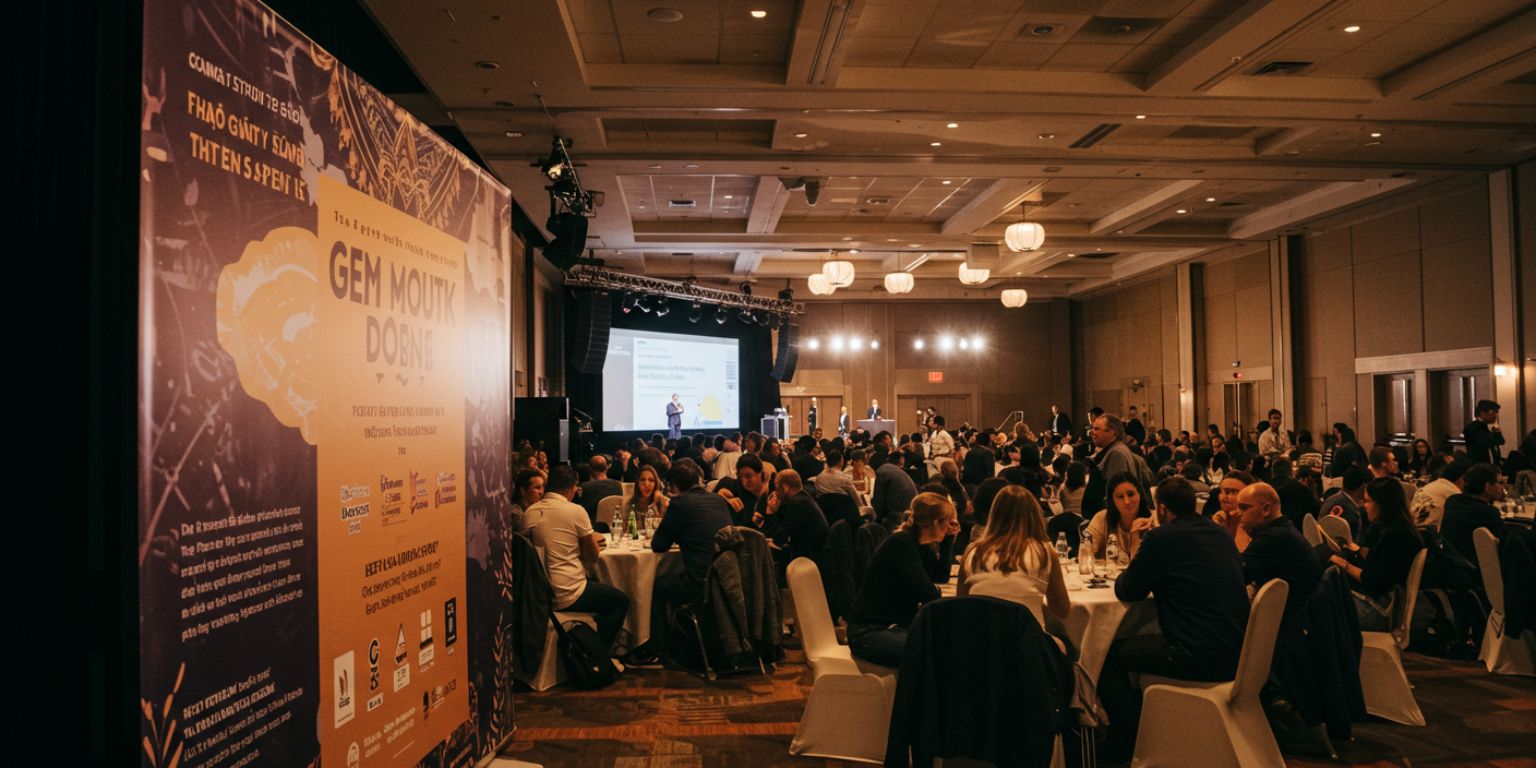
“Start tight on program banner, pull back to full community room, neutral light, end centered.”
Use on event landing pages and recaps.
Artifacts and exhibitions
Artifact detail
“Gentle pan across pottery design, soft gallery light, keep pattern sharp, end on full artifact.”
Use in museum marketing and on QR labels.
Text legibility
“Slow tilt from artifact to placard, neutral light, maintain placard text legibility, end centered on title.”
Good for education and interpretation.
Historic buildings and places
Facade reveal
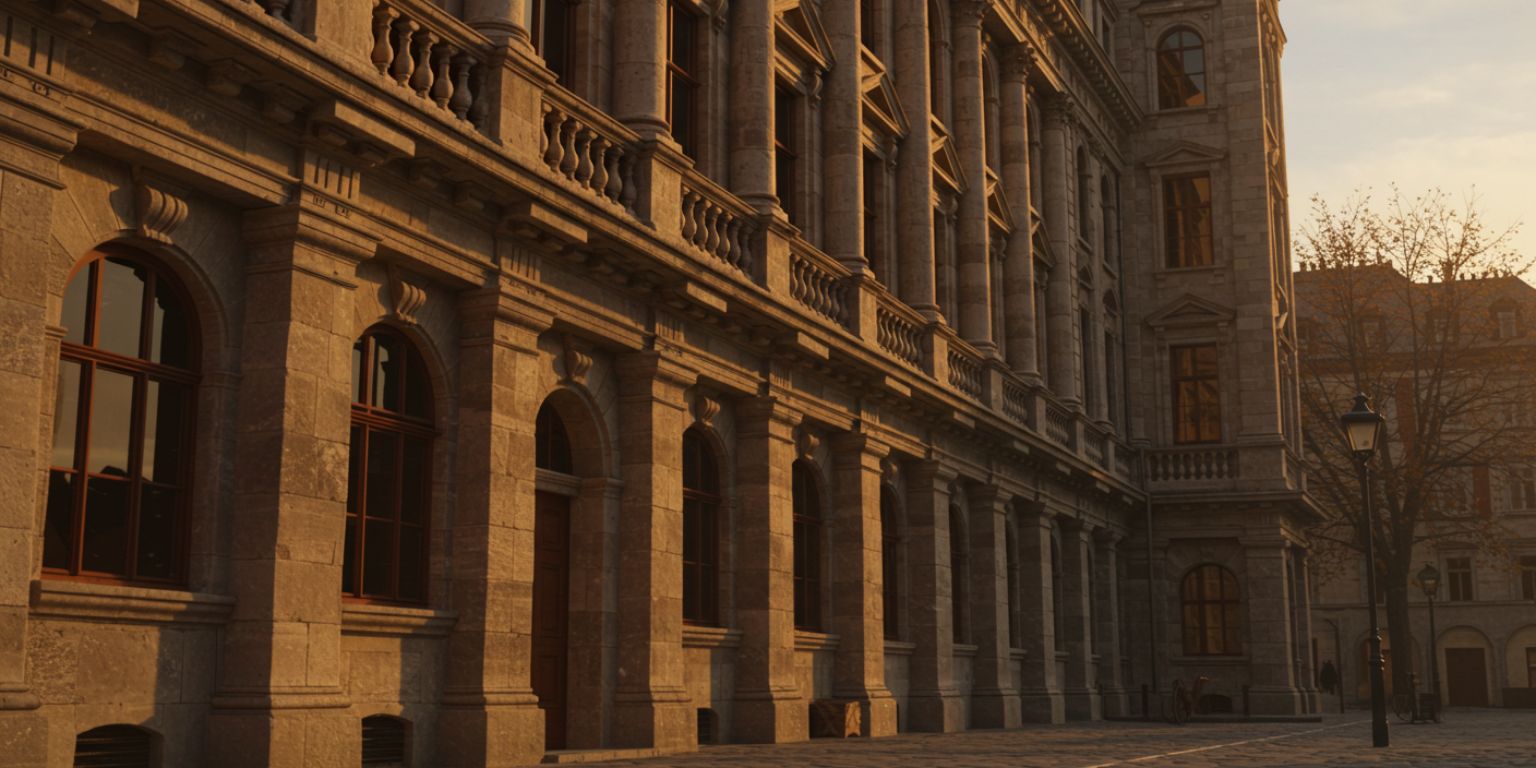
“Pull back from architectural detail to full facade, natural light, keep verticals true, end centered on entrance.”
Great for heritage preservation campaigns.
Neighborhood context
“Slow pan right across historic street, golden hour light, keep horizon level, end on landmark.”
Use in heritage tourism content.
Before and after progress
Restoration progress
“Split frame, gentle pan across before and after images, even light, keep lines straight, end centered on completed side.”
Ideal for grant reporting and capital campaign updates.
Frameish workflow for nonprofits and museums
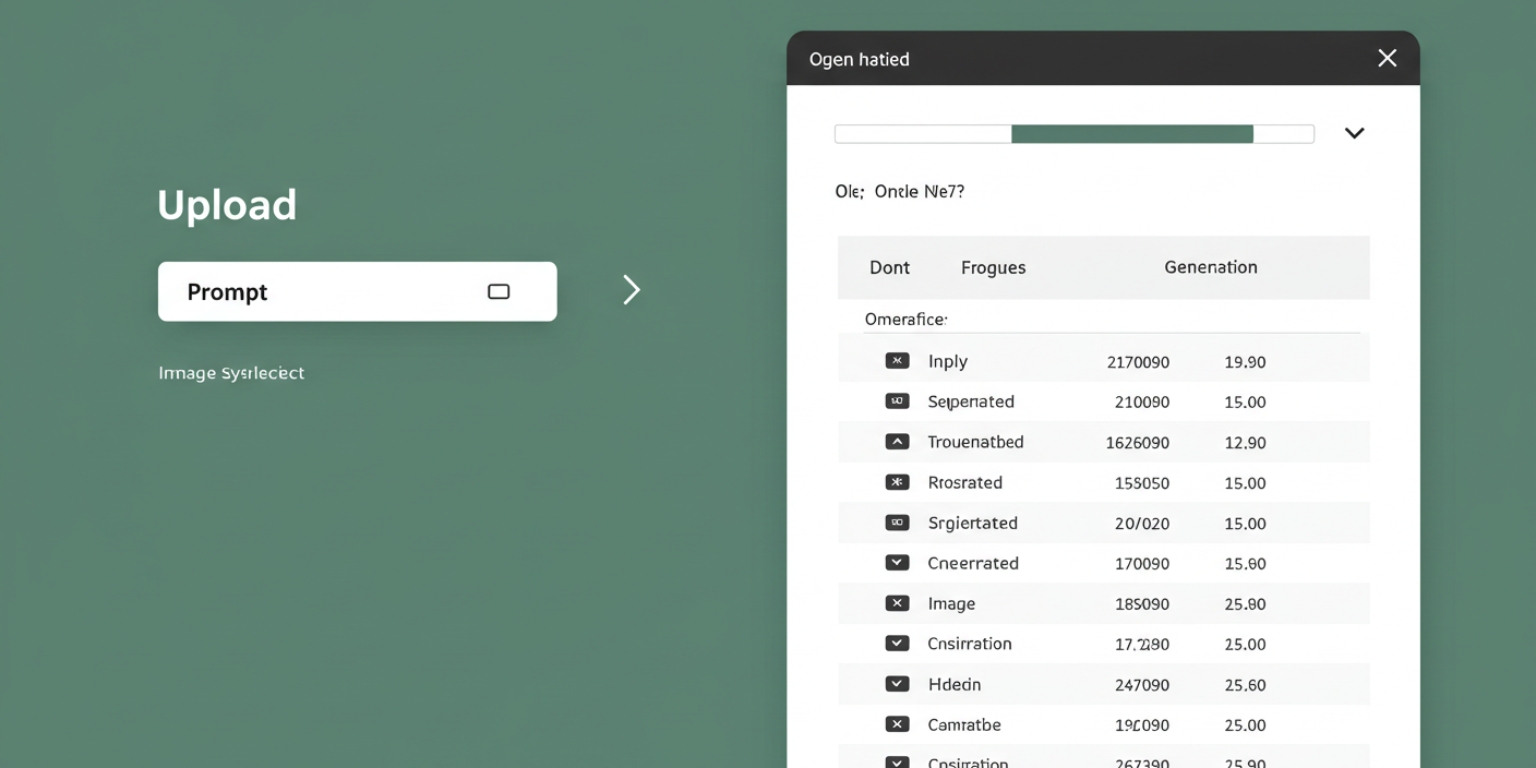
- Open Frameish and click Get Started.
- Buy credits. The popular entry is 3 videos for $14.99, one credit per finished clip.
- Upload a high-quality JPEG or PNG. Use the best version you have.
- Paste your prompt exactly as written.
- Generate and wait about 30 to 60 seconds.
- Download MP4 and preview on your phone.
- Regenerate if needed with a tighter opening or a clearer instruction like “keep label legible” or “keep verticals true.”
- Name files clearly for handoff:
museum-exhibit-artifact-pan-08s.mp4, donor-appeal-portrait-pushin-09s.mp4.
Platform playbooks that match donor behavior
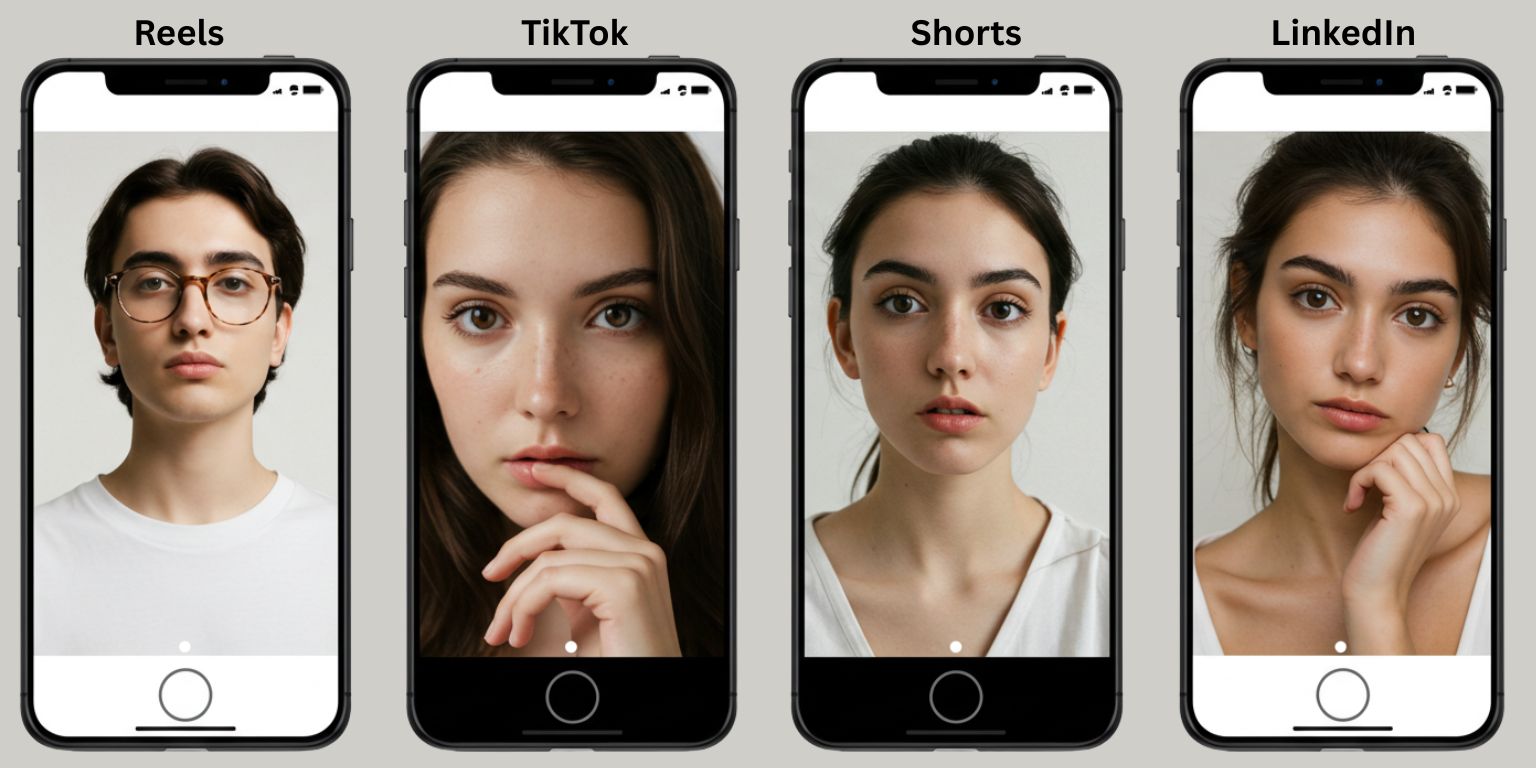
Instagram Reels and Facebook Reels
- Post vertical 9:16.
- Start motion on frame one.
- Use on-screen labels like “Scholarship winner” or “Saved from demolition.”
- Keep clips 6 to 12 seconds for replays.
- Caption with impact, location, and a soft donate CTA.
TikTok for nonprofits
- Lead with a human moment or detail.
- Pair with sound that fits your tone.
- Ask a question in the caption to spark comments.
- Tag your city or cause to reach relevant communities.
YouTube Shorts for heritage content
- Treat the first frame like a thumbnail.
- Use animated stills as B-roll under a quick voiceover fact.
- End with a clear learn more or donate prompt.
LinkedIn for foundations and partners
- Post square or vertical.
- Add a one-line overlay with the program or grant name.
- Tag partners and funders.
- Link to a grant report or impact page.
Donor appeals, landing pages, and email
Donation landing pages
Place one lightweight loop near the top. Keep it silent and under 12 seconds so the page stays fast. Pair with a single, specific ask.
Appeal emails
Use a motion hero with a GIF fallback. Keep the file small and link the entire visual to the donation form.
Stewardship and updates
Send a thank-you clip created from an impact photo. Add a one-sentence note and a link to a deeper story.
Accessibility and ethics
- Respect dignity and context.
Do not invent motion that changes meaning.
- Honor cultural protocols.
Some communities restrict the use of images. Follow guidance from your partners.
- Alt text first.
Write plain-language descriptions of the action for screen readers.
- Reduce motion options.
Avoid looping multiple assets on a single page. Offer a still fallback.
Measurement that ties to mission
Track what matters, not vanity metrics.
Top of funnel
Reach, replays, watch time, shares, saves, and landing page traffic.
Mid funnel
Email clicks from motion heroes, petition signs, volunteer sign-ups, event RSVPs.
Bottom funnel
Donations, average gift, recurring gifts started, membership joins, and grant outcomes influenced.
Use UTMs on links. Note which prompts, subjects, and end frames produce the strongest downstream actions.
Quality checklist before you publish
- First frame reads clearly on mute.
- Subject stays sharp through the move.
- Motion is smooth and restrained.
- Text and placards remain legible.
- Lines are straight, color is true, and context is preserved.
- Clip ends on a strong still or loops cleanly.
- File name, alt text, and caption are consistent.
Troubleshooting and quick fixes
Motion looks cheesy
Reduce intensity. One move. Slower speed. Neutral light.
Placard or label is soft
Add “maintain text legibility” to the prompt and regenerate.
Subject drifts
Specify “keep subject centered” or “keep face sharp throughout.”
Loop seam visible
Ask to “return to exact start position for a seamless loop” or switch to an end-frame version.
Color feels wrong
Fix the photo first. Then regenerate. Avoid heavy grading after the fact.
A 30-day nonprofit content plan
Week 1. Select and set up
- Choose 8 archive or impact photos that align with your current campaign.
- Write prompts using the recipes above.
- Generate in Frameish and name files by placement.
Week 2. Publish and test
- Update donation page with one motion hero.
- Publish three social clips across Reels, TikTok, or Shorts.
- Send an email with a motion hero linking to the form.
Week 3. Steward and expand
- Send a donor thank-you clip made from an impact photo.
- Post an artifact or building loop to promote your next program.
Week 4. Optimize and request
- Review results. Keep prompts that consistently perform.
- Launch two small paid tests with different end slates.
- Run a final push with the best performing clip and a clear, specific ask.

Why Frameish is a smart default for nonprofit video
You need clarity, speed, and trust. Frameish focuses on one job. Upload, prompt, generate, download. It is fast enough for campaign deadlines and simple enough for any staff member or volunteer to run.
- Fast generation: about 30 to 60 seconds per clip
- Browser-based: no installs
- Credit pricing: start with 3 videos for $14.99
- Default 480p output: optimized for social speed
- Money-Back Promise: low risk to test
Start with one portrait, one artifact, and one place. Publish, measure, and repeat with confidence.
Frequently Asked Questions
How long does Frameish take?
About 30 to 60 seconds per video.
What file formats should we use?
High-quality JPEG or PNG. For scans, clean dust and correct lines first.
What resolution is the output?
480p by default for speed. Check the product page for future HD options.
Can we use these in grant reports?
Yes. Export MP4s for reports, landing pages, and presentations.
Do we need to install anything?
No. Frameish runs in your browser on desktop and mobile.
What if a result looks off?
Tighten the prompt, choose a cleaner source image, or slow the move. If you are not satisfied, you are covered by the Money-Back Promise.
Wrap up
Your archive is not just history. It is fuel for action. A gentle push toward a face, a pan across an artifact, a reveal of a restored facade. These small, intentional moves give your cause the presence it deserves on screens that prefer motion. With AI photo to video, you can publish mission-driven clips in minutes and keep the focus on impact.
Open Frameish, paste one of the prompts above, and ship your first nonprofit video today. Then build a simple cadence that turns still images into support for your mission.